
To add pupils to your membership group, you will need to be logged in as a group member and have been assigned access by a manager of your membership group.
To add pupil data, you’ll need access to at least one eligible subscription: Infant Maths, Primary Maths or Infinity. A Manager can assign subscription access in Group Settings.
If you’re a Group Manager without subscription access, you can temporarily assign yourself an available licence while you set up your pupil data. Alternatively, ask a group member who already has access to an eligible subscription to follow these steps with you from their account.
To help keep pupil data secure, you’ll need to set up two-factor authentication (2FA) before getting started. Using either Microsoft or Google Authenticator, head to the Security tab in Account settings to set it up.
Once you’re set up with 2FA and subscription access, you’re ready to add your pupils. From My account, select Pupils from the menu. Here, you’ll see any pupils already shared with White Rose Education and can choose to add pupil details using an Excel spreadsheet (.xlsx) or connect your school’s MIS through Wonde.
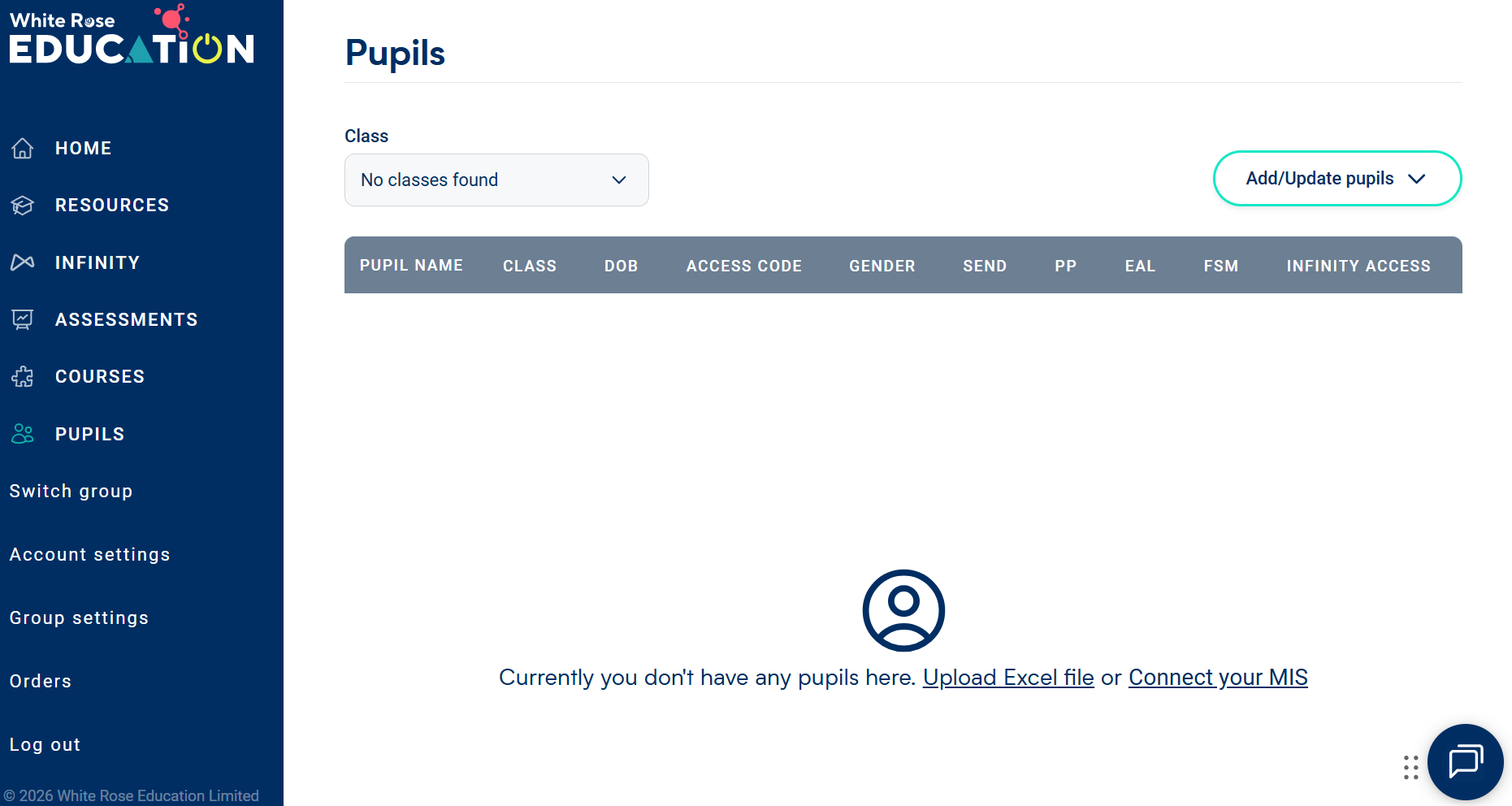
You can click to jump to a video demonstration, or to your preferred method:
MIS connection
If you choose to connect your school MIS, you will be guided through the information we require to request the connection through Wonde. Please be advised that setting up this connection can take anywhere from a few days to a few weeks depending on whether you already use Wonde.
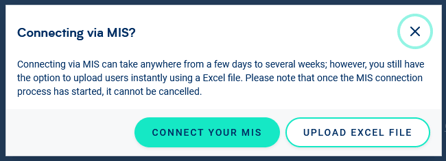
If your school already uses Wonde, your Wonde administrator will be asked to approve access for White Rose Education before your connection is set up. If you’re new to Wonde, their friendly support team will get in touch to help you get set up, free of charge.
Once your school’s MIS is successfully connected, our Customer Care team will email you to confirm.
The benefit of MIS integration is that the data already exists and your school can be confident as to it's accuracy. Pupil information is updated automatically. Any updates made in your MIS to the pupils shared with Infinity will be updated within 24 hours, so there’s no need to make manual updates.
Changing your MIS?
If you’ve shared pupil data through an MIS integration, changing your MIS will anonymise all existing pupil results in Infinity and the Assessment Tracker. Before making the change, please export any results you’d like to keep.
Excel upload
To upload pupil data in a spreadsheet, first download the template. The only data we require are the pupils’ first name, last name, date of birth, UPN, and what class they’re in.
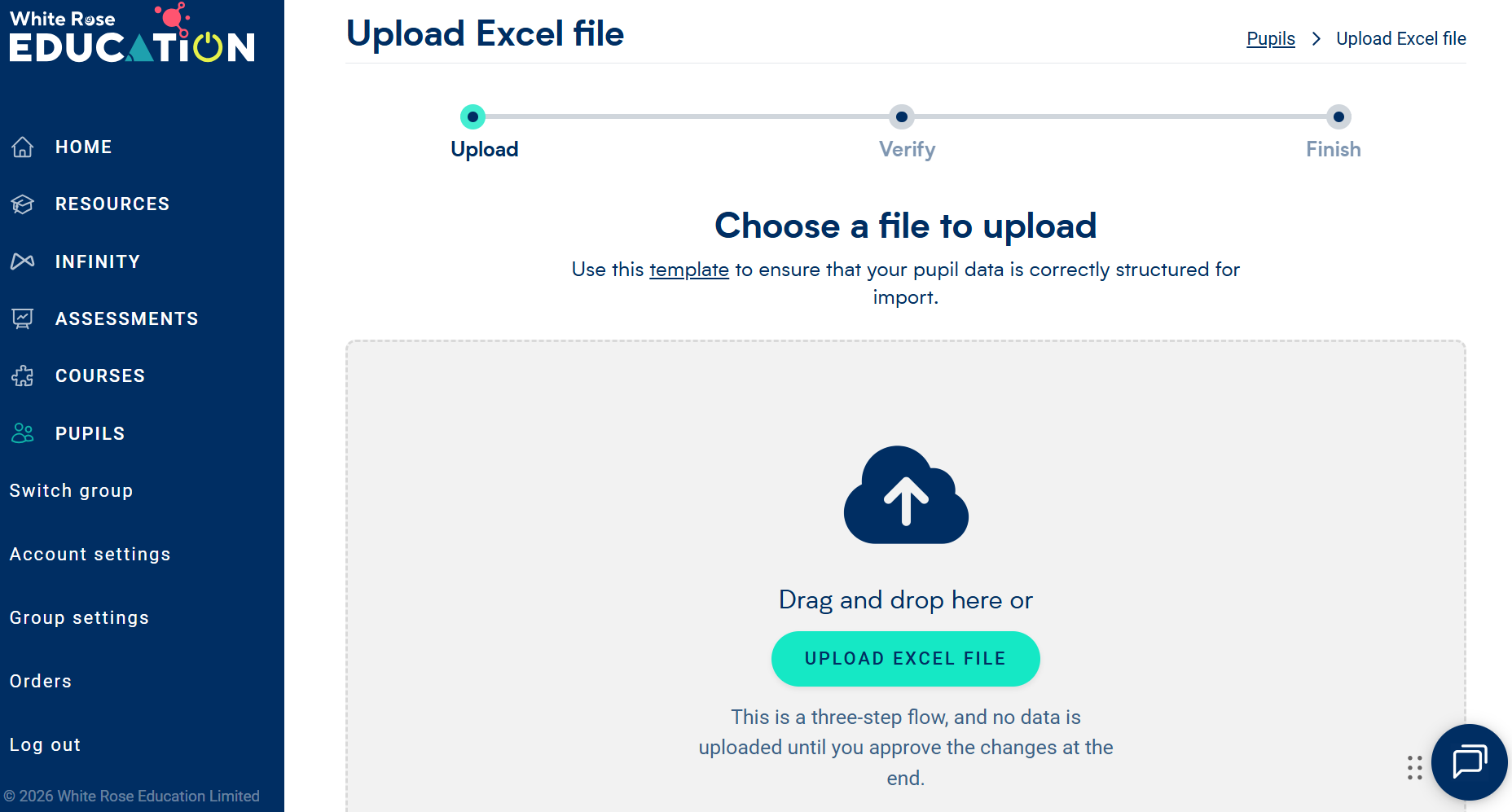
Make sure not to change the column headers in the template; the upload won’t succeed if these have been altered.

Fields marked with an asterisk (*) are required. All other fields are optional and can be included to help you review and understand assessment results in the context of pupil characteristics, such as gender, Pupil Premium eligibility and SEN status.
Add the details of the pupils you’d like to share with White Rose Education. There’s no pupil limit for the Assessment Tracker. If you have an Infinity subscription, your pupil licences are limited, so enter ‘Y’ in the Infinity Access column for each pupil you’d like to assign Infinity quizzes to. If you don’t have Infinity, simply leave this column blank.
Once you have entered the children’s details save and close the Excel file and return to the ‘Upload’ page.
Select ‘Upload Excel file’ and find your prepared spreadsheet to upload.
If there’s an issue (such as missing data, extra pupils, or incorrect column headers) you will be shown an error message with guidance to help you fix it.
You’ll see a summary of the data being uploaded. If anything doesn’t seem right, click ‘Discard’ to go back and check your file. If everything looks good, click ‘Save changes’.
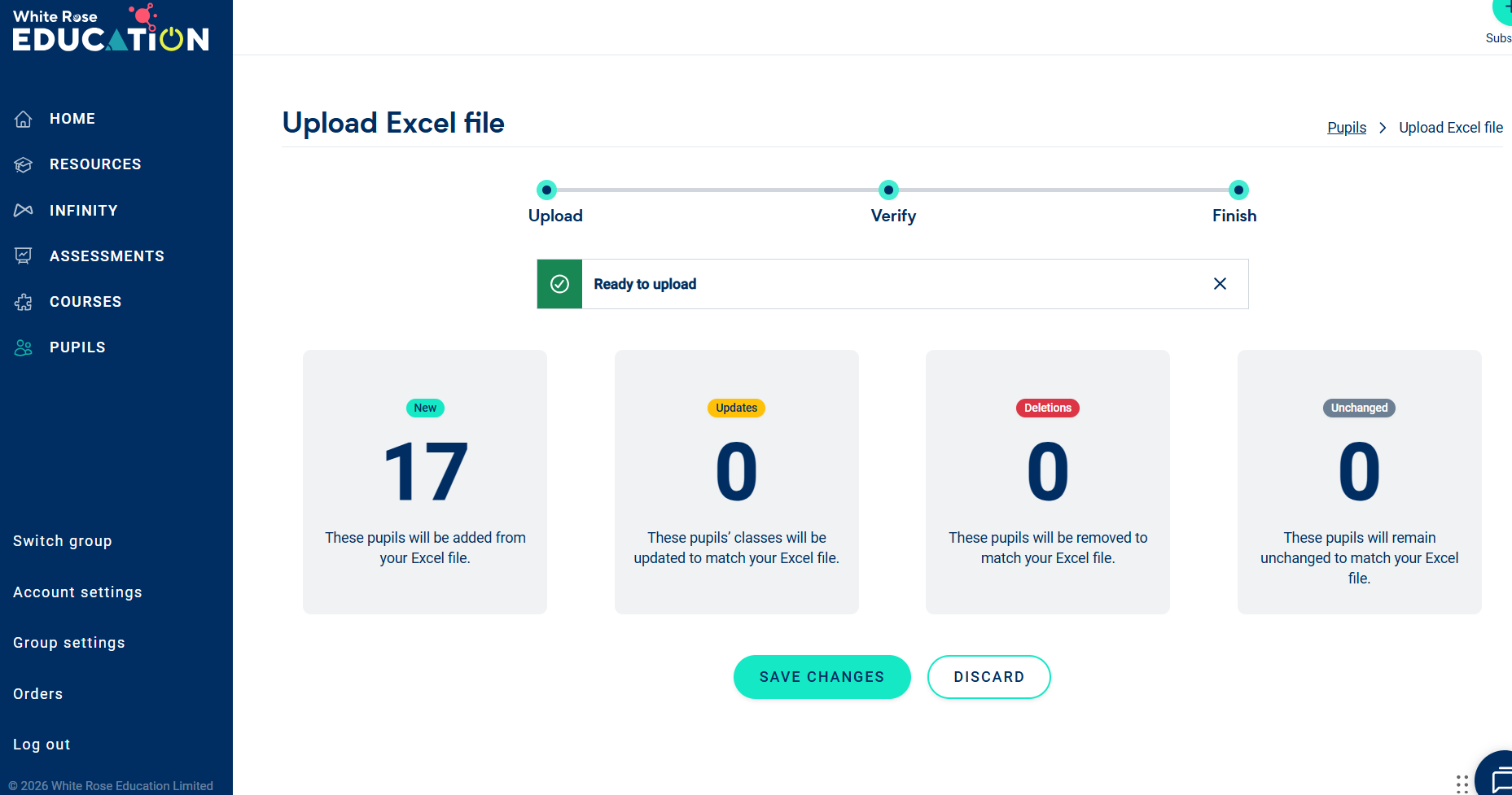
Your pupils will then be listed on the Pupils tab. You’re now ready to begin tracking progress!
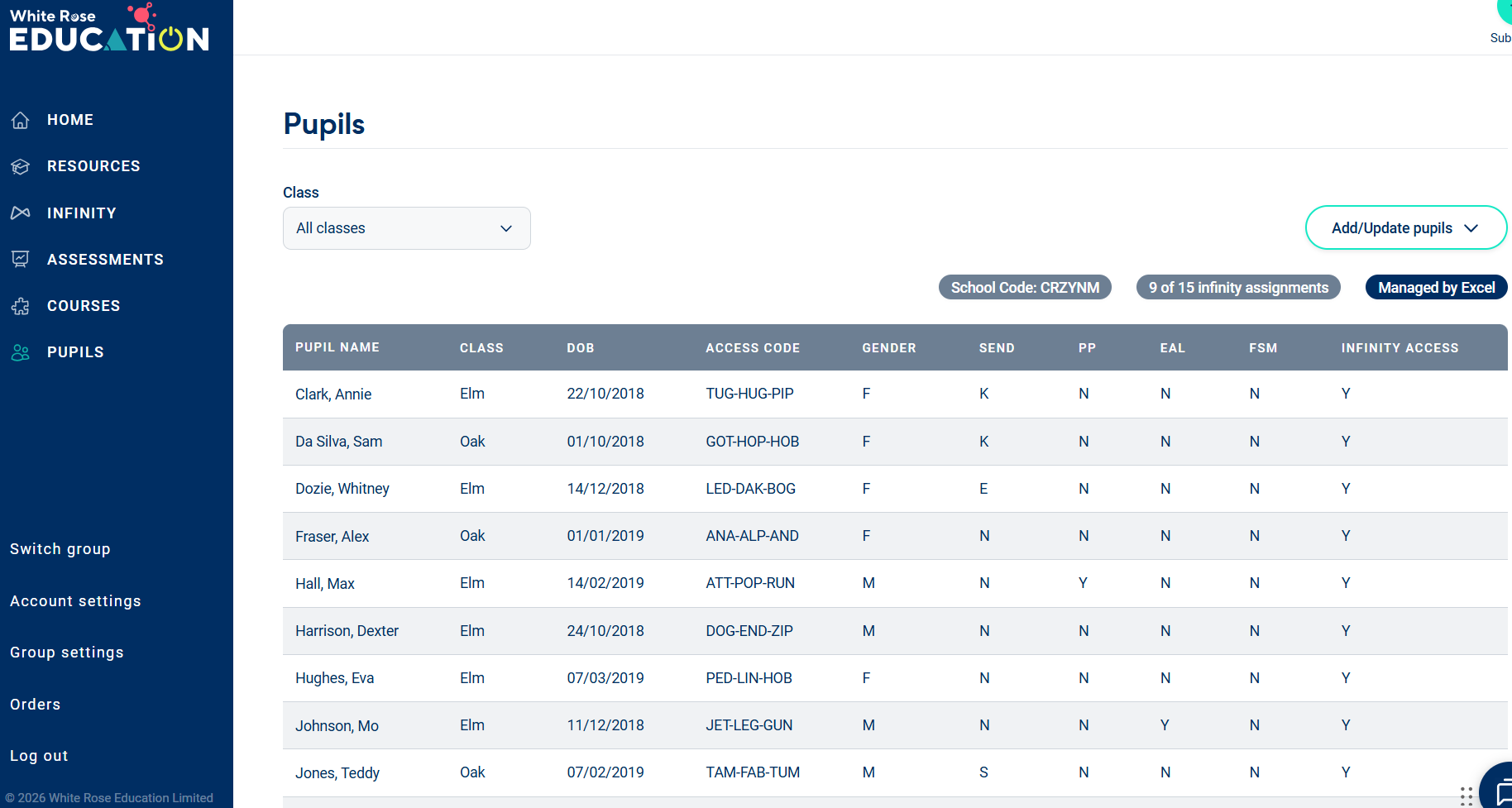
If you have a new starter or need to update the classes for a new academic year, you can update your pupils at any time.
Click ‘Add/Update pupils’ then ‘Add/Update pupils via Excel file’.
Download and open the existing file of pupil data. Add any additional pupils, or to remove a pupil simply delete their row. For class updates, enter the new class name for each child. Save the file and return to the Pupils tab.
Select ‘Upload Excel file’ and find your updated spreadsheet.
Once uploaded, your updated list of pupils will be displayed.
If the only change made was updating the class names, the pupils will retain their existing pupil access codes.