
Once a teacher has accepted their group invitation, they will appear in the Manage users tab as a Member. At this point, the Group Manager must configure their access before they can use any subscription resources.
Why configure access?
This feature allows schools to assign the correct subscriptions to each teacher. For example, in a group of 16 teachers:
-
8 teachers may need Primary Maths Resources
-
8 teachers may need Primary Science Resources
A teacher can be given access to one subscription, several subscriptions, or all subscriptions — depending on the school’s needs.
Setting up access
-
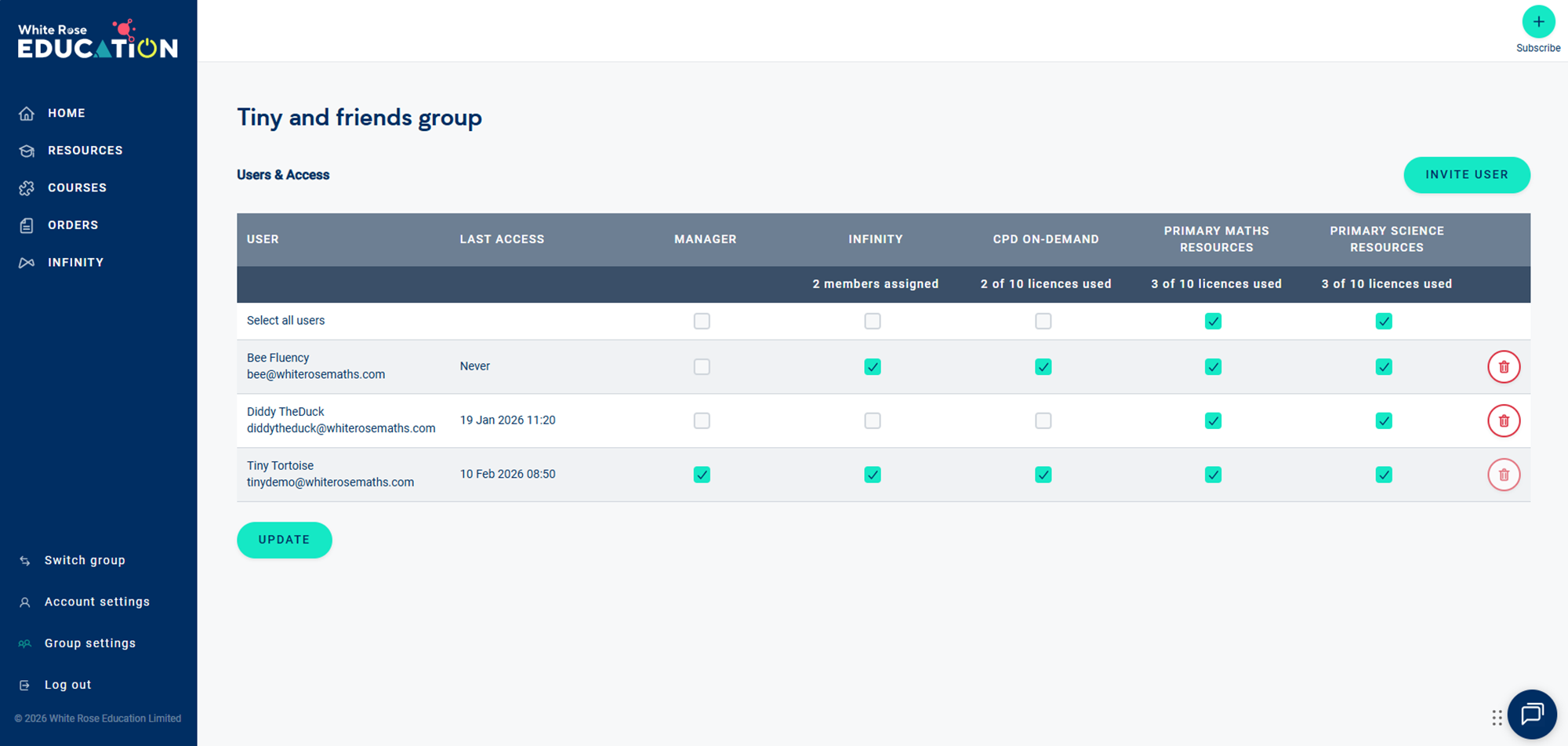
Log in and open 'My account' then select 'Group settings from the menu bar to open the 'Users & Access' tab.
-
Find the teacher’s name in the list.
-
Tick the box for each subscription you’d like them to access.
-
For example, tick Primary Maths Resources to give maths teachers access.
-
Tick multiple boxes if a teacher needs more than one subscription.
-
-
To give every group member access to a subscription, use Select all users at the top of the column.
- Click 'UPDATE' to save your changes
Important to note
Until you select access rights, teachers will not be able to view or use the resources included in the subscription. You can adjust or remove access at any time.
Common problems checklist
If a teacher says they cannot access resources:
-
Check the Users & Access page to confirm they are a member of the group. If their row says 'Invite sent' they must accept the invitation before being able to access the resources.
-
Check their row on the Users & Access page to ensure the boxes have been ticked for the subscriptions they require access to.
-
If licences are fully used (e.g. 20 of 20 licences), you will need to upgrade your subscription before assigning more access. See: Increasing licenses
-
If the issue continues, please contact our Customer Care team and choose:
Query: My subscription
Subcategory: Managing users