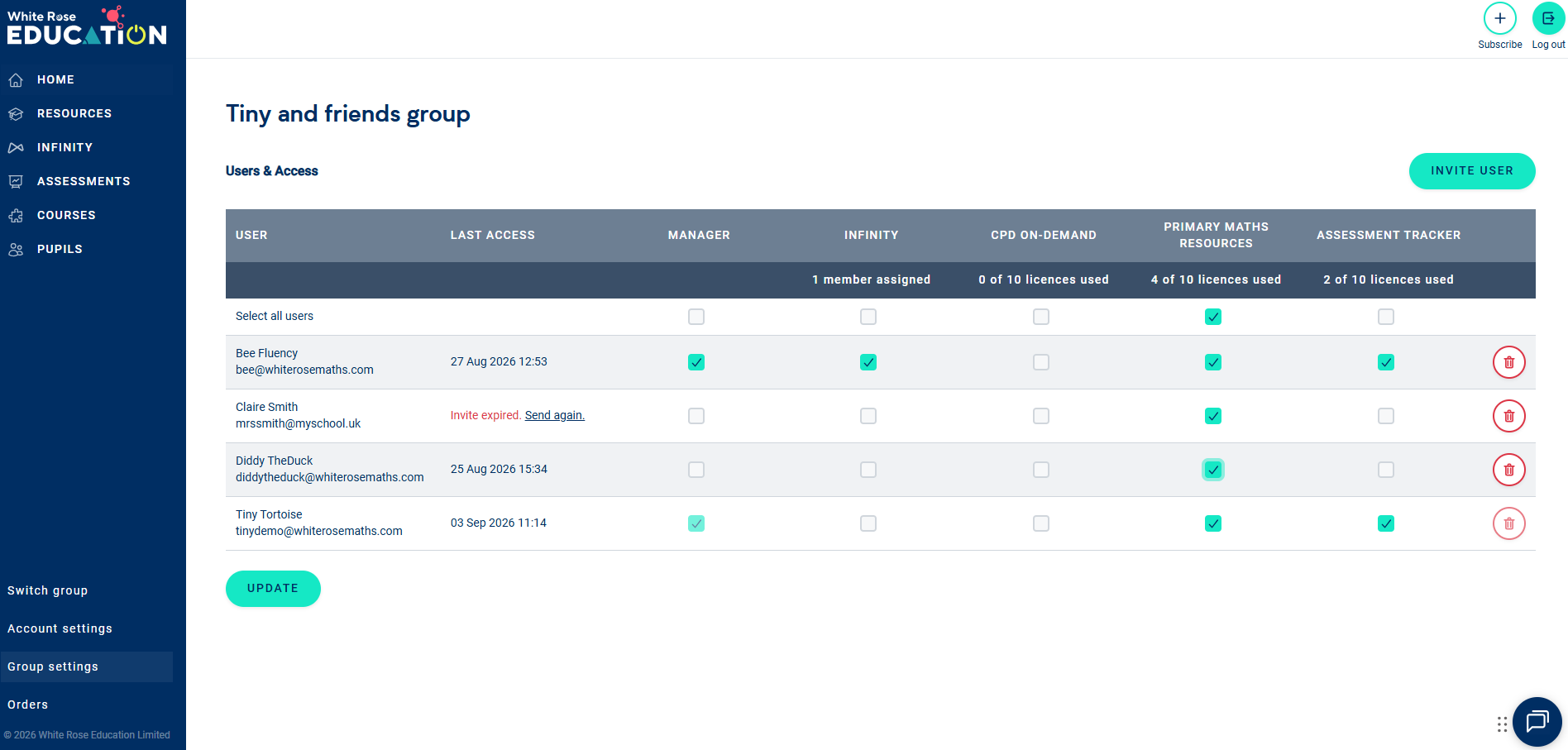
Access to Assessment Tracker
Whether your school has been using Infant Maths or Primary Maths for some time, or you’re a brand-new subscriber, Assessment Tracker access needs to be assigned separately to members of your group.
If you spot a new Assessment Tracker access option in your Group settings, don’t worry you haven’t purchased an additional subscription. It’s simply where Managers can control which group members have access to Assessment Tracker.
A Manager in your membership group can choose which members have access to Assessment Tracker through Group settings. This additional step helps protect pupil data by ensuring that only the appropriate members of your group can access assessment information.
Need help assigning subscription access? See our guide: How to manage subscription access for the members of your group
Getting ready to use Assessment Tracker
Once you’ve been assigned access to Assessment Tracker, there are a couple more steps to complete before you can start recording assessment results.
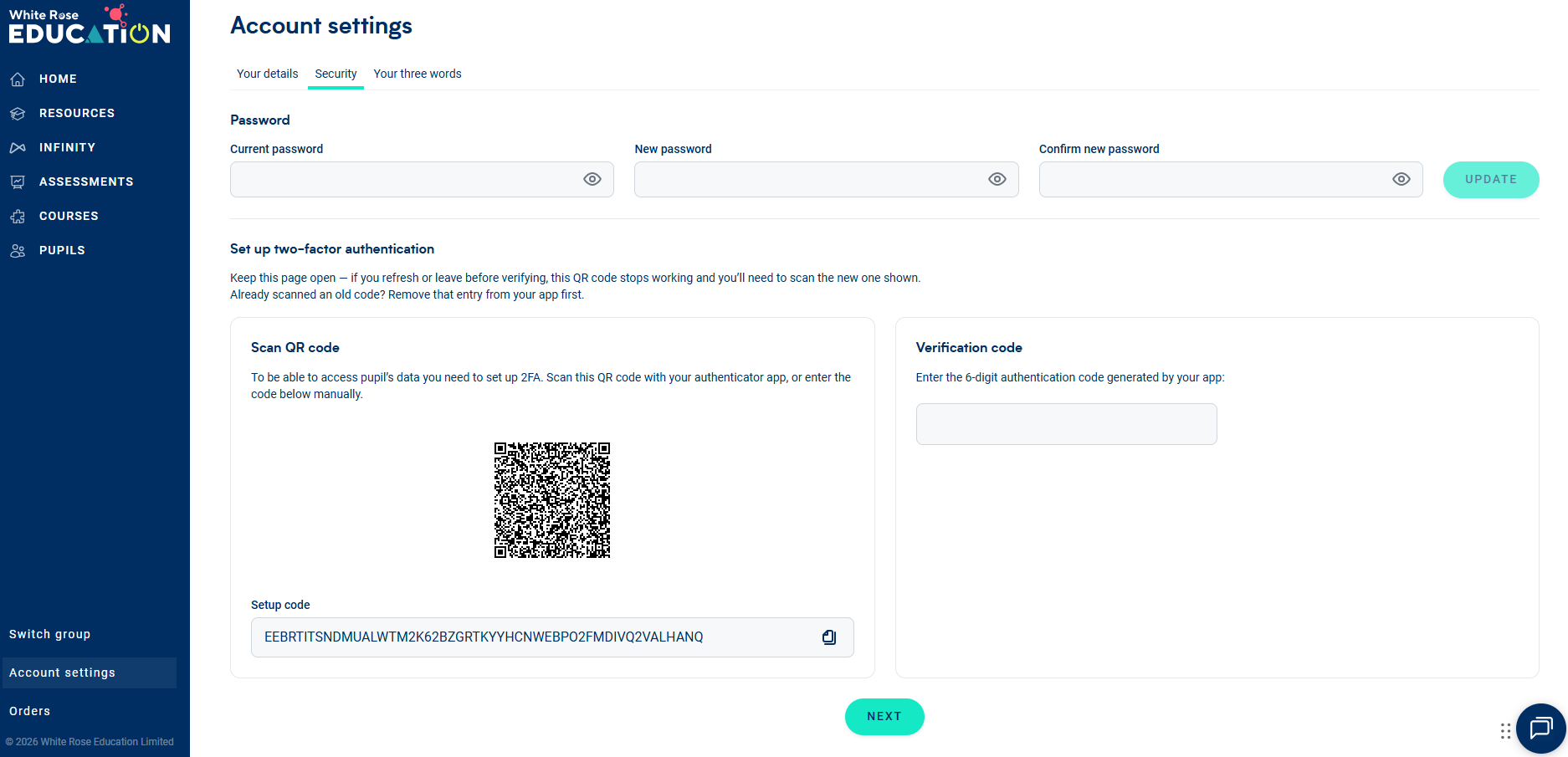
First, you’ll need to set up two-factor authentication (2FA) on your White Rose Education account. This extra layer of security helps protect pupil data and is required before you can access either the Pupils tab or Assessment Tracker tab in My account.
You can set up 2FA using either Microsoft Authenticator or Google Authenticator. Simply open Account settings and select the Security tab where you'll see instructions on how to set it up.
You’ll also need to make sure your pupils have been rostered to your account before you can record their assessment data. If pupil data has already been added, you won’t need to roster those pupils again. If you’re starting from scratch, see our How to add pupils article for guidance on adding your pupil data.
Using Assessment Tracker
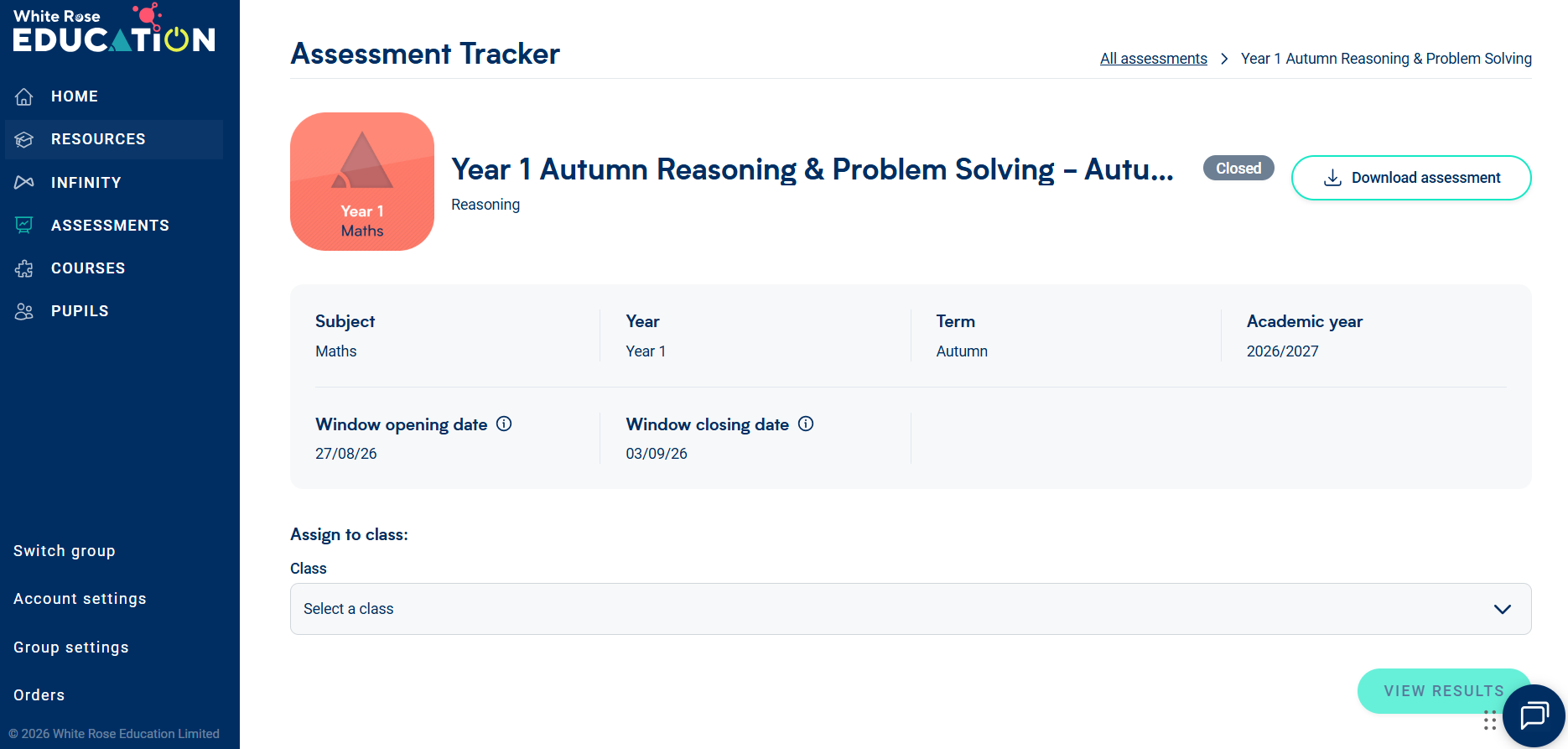
Using Assessment Tracker is simple. During each assessment window, make sure your pupils are rostered and enter their results for the relevant end-of-term assessment.
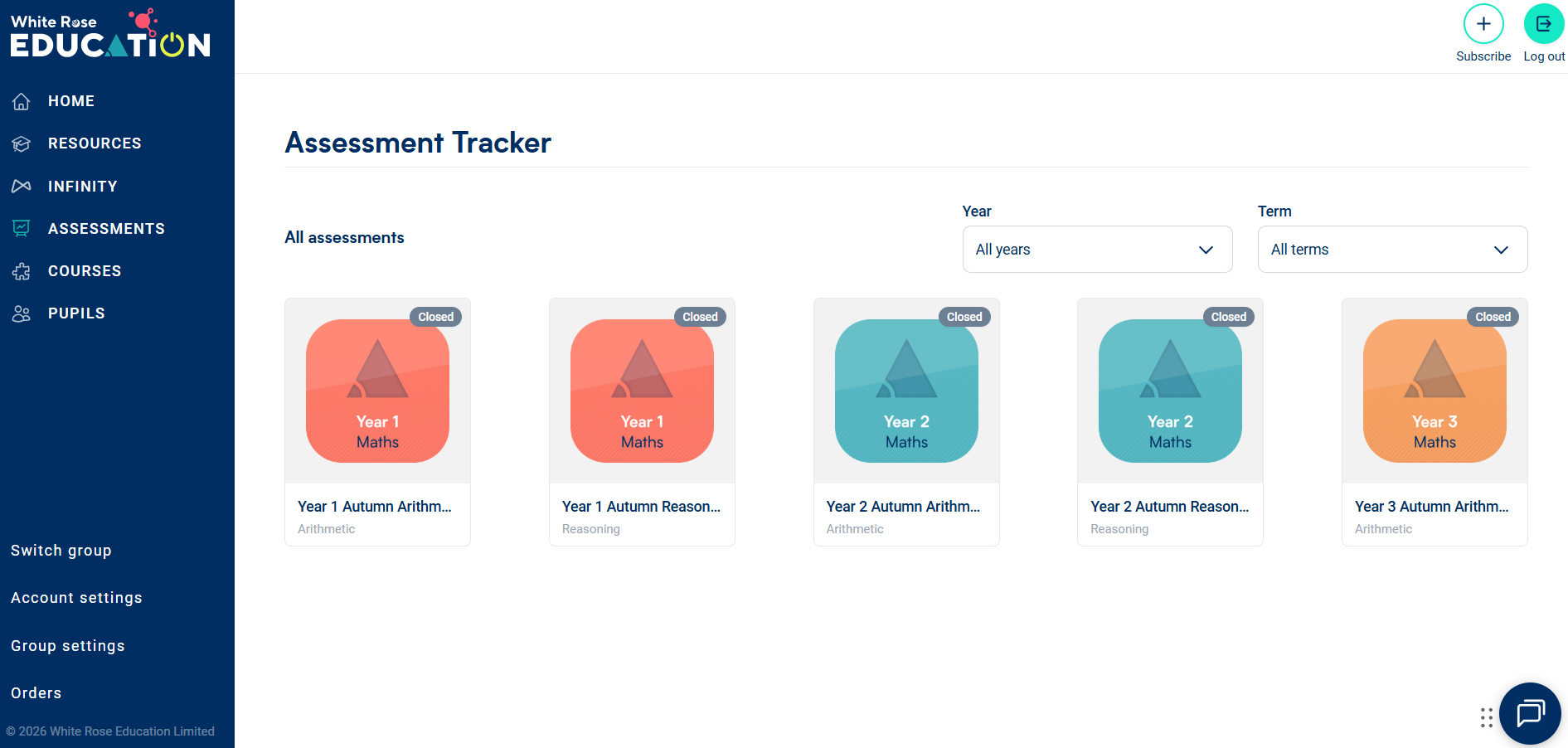
Once the assessment window has closed and the results have been processed, you can return to Assessment Tracker to see your pupils’ results alongside standardised scores and helpful data insights, giving you a clearer picture of their performance.